Short Answer
Have you ever opened a PDF only to find that its pages are in the wrong order, or worse—rotated in an awkward landscape orientation when you need a clean portrait view? You’re not alone. Many users encounter these issues, whether they’re working with scanned documents, digital manuals, or archived reports. The good news is that reversing page order or adjusting orientation is simpler than you might think. In this guide, we’ll explore how to fix these common PDF problems, why they happen, and what tools can make the process effortless. By the end, you’ll be able to transform any PDF into the exact format you need, saving time and frustration.
Why Do PDFs Sometimes Have Reversed or Upright Pages?
PDFs can end up with pages in the wrong order or orientation for several reasons. One of the most common causes is improper scanning. If a document is scanned in batches without proper sequencing, the pages may appear reversed or out of order. Similarly, when converting files from other formats (like Word or images) into PDFs, the software might not preserve the intended layout, leading to misaligned pages. Another factor is human error—someone might have accidentally dragged pages into the wrong position in a PDF editor. Even digital documents downloaded from websites or shared via email can sometimes arrive with formatting issues due to differences in software or settings. Understanding these root causes helps you troubleshoot more effectively and choose the right solution.
How to Reverse the Order of PDF Pages
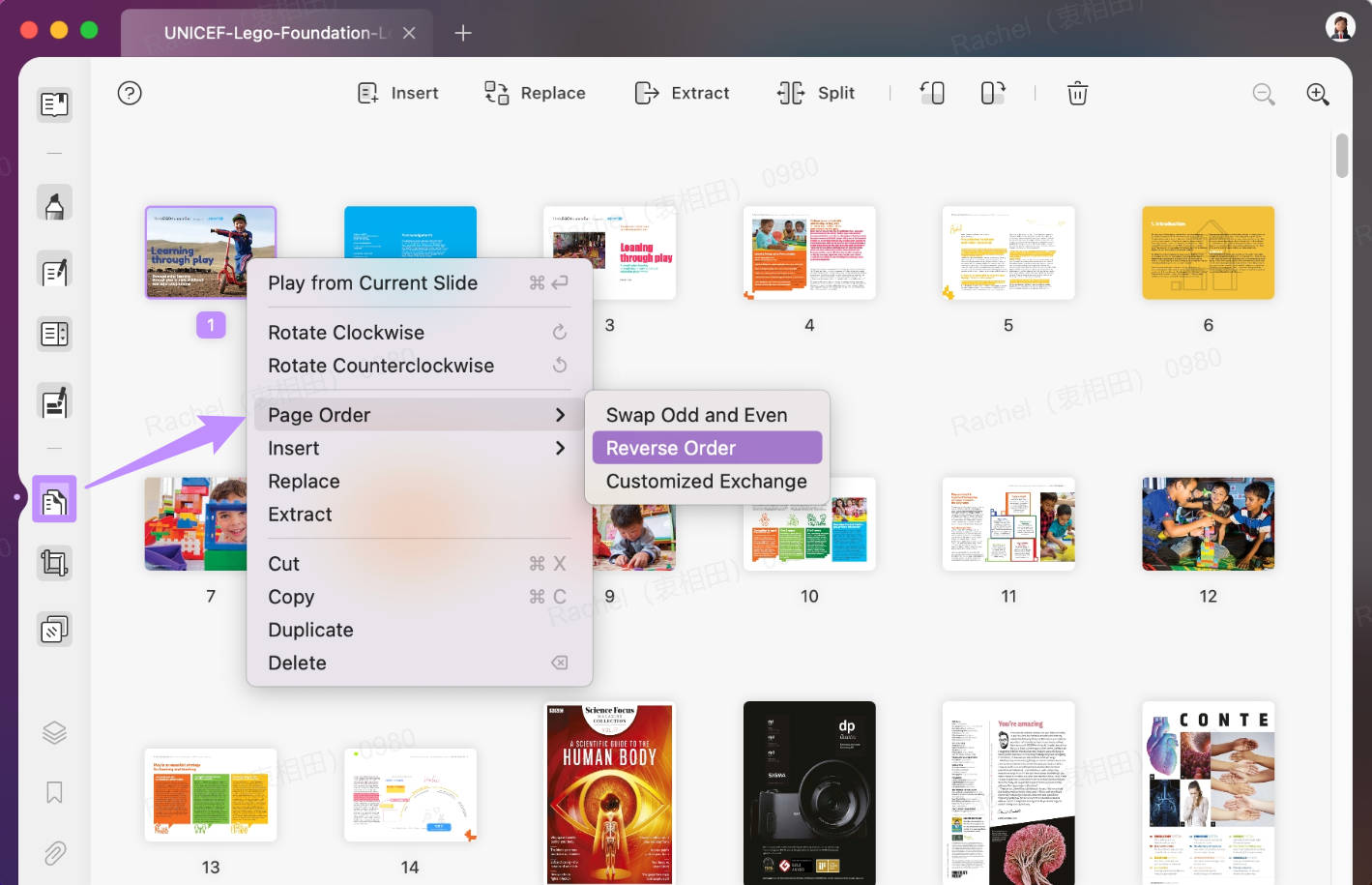
Reversing the page order in a PDF is a straightforward process, whether you’re using a dedicated tool or a built-in feature in your PDF reader. Here’s a step-by-step guide:
- Open your PDF in a PDF editor like Adobe Acrobat, UPDF, or an online tool such as Smallpdf or ILovePDF.
- Locate the page thumbnails or navigation panel—this is where you can see all the pages in a grid or list view.
- Select all pages by clicking the first page, holding
Shift, and clicking the last page (or useCtrl+Aon Windows orCmd+Aon Mac). - Reverse the order using the toolbar option labeled “Reverse Pages” or “Reverse Order.” Some tools may require you to right-click and select this option from a dropdown menu.
- Save the changes—once the pages are reversed, click “Save” or “Export” to apply the new order to your PDF.
For users who prefer a more visual approach, some tools allow you to drag and drop pages manually. Simply select a page thumbnail and move it to the desired position in the sequence. This method is ideal for making selective changes, such as reversing only a portion of the document.
Changing PDF Orientation from Landscape to Portrait
Rotated pages can make a PDF difficult to read, especially if the content was meant to be viewed in a different orientation. Here’s how to fix it:
- Open the PDF in your editor and navigate to the page you want to rotate.
- Look for the rotation tool—this is often found in the toolbar as an icon resembling a rotated square or labeled “Rotate Page.”
- Choose the rotation direction—most tools offer 90-degree increments (clockwise or counterclockwise). Select the option that aligns the page correctly.
- Apply to all pages (optional)—if the entire document needs the same rotation, use the “Apply to All” feature to save time.
- Save the PDF to ensure the changes are permanent.
Some advanced tools, like Adobe Acrobat, also allow you to set a default page size or orientation for the entire document, preventing future formatting issues. If you’re working with a scanned document, ensure the original scan was done in the correct orientation to avoid unnecessary rotations.
Tools to Simplify PDF Reversal and Rotation
Not all PDF tools are created equal, and some are better suited for specific tasks. Here’s a breakdown of the best options for reversing pages and adjusting orientation:
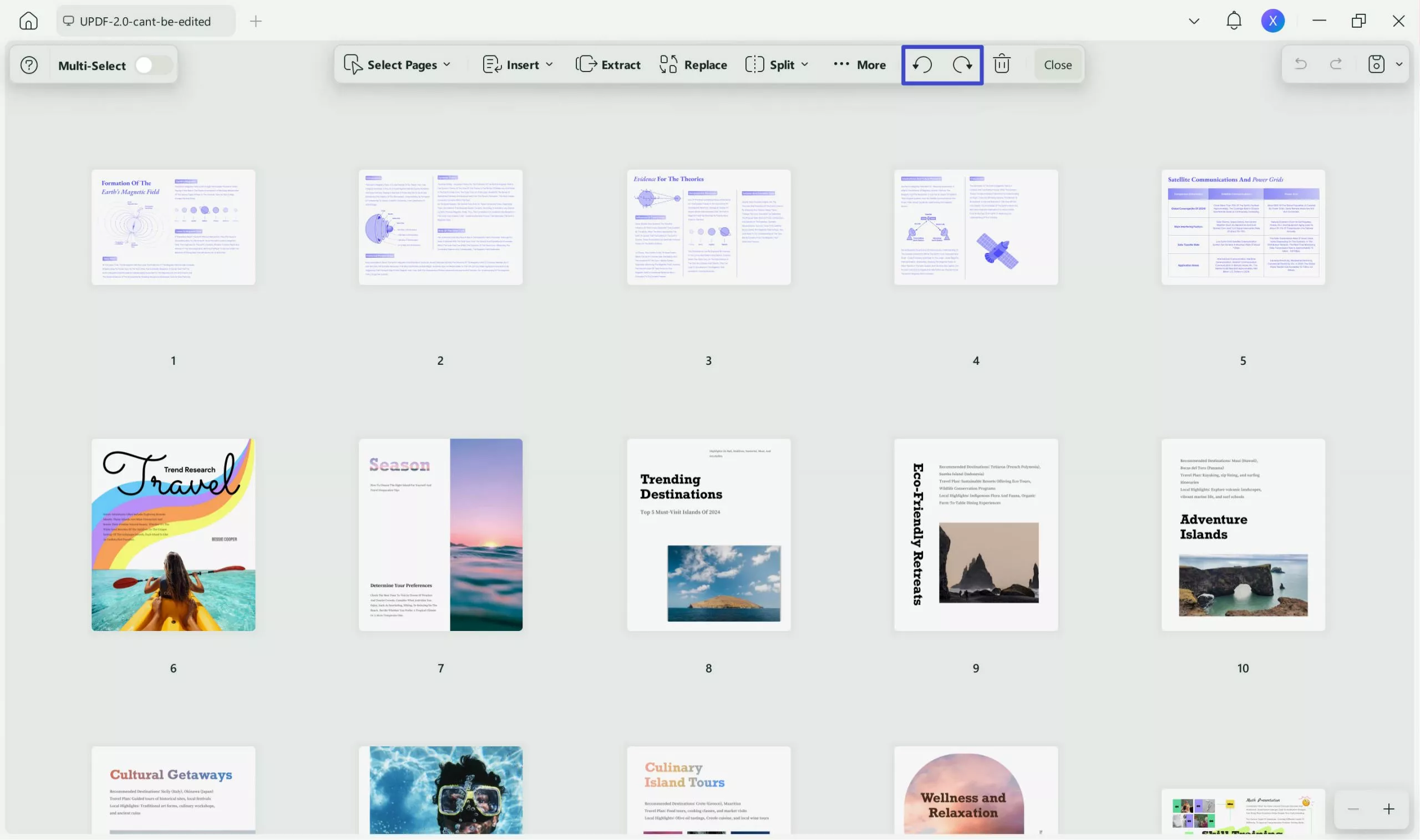
- UPDF: A user-friendly tool available for both Windows and Mac, UPDF offers intuitive features for reversing pages and rotating content with just a few clicks. Its clean interface makes it ideal for beginners.
- Adobe Acrobat: The industry standard for PDF editing, Adobe Acrobat provides robust tools for page manipulation, including batch processing for large documents. However, it comes with a subscription fee.
- Online PDF Editors (Smallpdf, ILovePDF, PDF24): These web-based tools are perfect for quick fixes without downloading software. They often include free tiers, though some advanced features may require a premium account.
- PDF-XChange Editor: A powerful free alternative for Windows users, PDF-XChange Editor includes advanced rotation and page-order tools, along with annotation features.
When choosing a tool, consider factors like ease of use, cost, and whether you need additional features like OCR (Optical Character Recognition) for scanned documents. For most users, a balance between functionality and simplicity is key.
Common Mistakes to Avoid When Reversing or Rotating PDFs
Even with the right tools, it’s easy to make mistakes that can complicate your PDF. Here are some pitfalls to watch out for:
- Forgetting to save changes: Always save your PDF after making edits to avoid losing progress. Some tools auto-save, but it’s good practice to manually save as well.
- Applying changes to the wrong pages: Double-check which pages you’ve selected before reversing or rotating. A single misplaced page can disrupt the entire document.
- Ignoring file size limits: Online tools often have file size restrictions. If your PDF is too large, consider using a desktop application or splitting the document into smaller sections.
- Overlooking compatibility issues: Some PDF readers struggle with rotated or reversed pages. Test the final document in multiple viewers to ensure it displays correctly.
- Not backing up the original: Before making bulk changes, create a backup of your original PDF. This way, you can revert if something goes wrong.
Advanced Tips for PDF Perfection
Once you’ve mastered the basics, take your PDF editing to the next level with these advanced techniques:
- Batch Processing: If you have multiple PDFs to edit, use a tool that supports batch processing. This feature allows you to reverse pages or rotate content across several files simultaneously, saving hours of manual work.
- Combining PDFs: Need to merge two documents with reversed pages? Use a PDF combiner tool to join them first, then apply your edits to the combined file.
- OCR for Scanned Documents: If your PDF contains scanned images, use OCR software to convert the text into an editable format. This ensures that reversed or rotated pages don’t disrupt readability.
- Custom Page Sizes: Some tools allow you to adjust page dimensions, which is useful for fitting content into a specific layout or preparing a document for printing.
- Automating Workflows: For frequent PDF editing, explore automation tools like Adobe’s JavaScript actions or third-party scripts that can perform repetitive tasks with a single click.
Conclusion
Reversing pages or adjusting the orientation of a PDF doesn’t have to be a daunting task. With the right tools and a clear understanding of the process, you can transform any PDF into a perfectly formatted document in minutes. Whether you’re dealing with a single file or a stack of documents, the ability to manipulate page order and orientation is a valuable skill that saves time and reduces frustration. Start by identifying the issue—whether it’s reversed pages, rotated content, or a mix of both—and choose the method that best fits your needs. Don’t forget to back up your original files and test the final document to ensure everything looks as intended. By mastering these techniques, you’ll take control of your PDFs and ensure they always meet your exact requirements.
FAQ
What is the easiest way to reverse PDF pages?
Use a PDF editor with a 'Reverse Pages' feature or drag-and-drop page thumbnails to reorder manually.
How do I rotate PDF pages from landscape to portrait?
Open the PDF in an editor, use the rotate tool to turn pages 90 degrees as needed, then save the changes.
Are online PDF editors safe to use?
Most reputable online editors are safe for non-sensitive documents, but avoid uploading confidential files due to privacy concerns.
Can I reverse pages in multiple PDFs at once?
Yes, some tools support batch processing to apply changes across several files simultaneously.
What should I do if my scanned PDF pages are reversed or rotated incorrectly?
Ensure the original scan orientation was correct, use OCR software if needed, and edit page order and rotation using a PDF editor.

Leave a Reply